

This guide is for PE teams already using Claude that want the whole team to get more done with AI. With the right systems in place, your team gets:
- Automatically screen CIMs against your buy box.
- Check every data room for red flags.
- Run a light QoE within hours after LOI.
- Turn monthly packs into KPI and variance reports.
- Answer LP requests from one place.
- Keep what each deal taught the firm.
Most teams already pay for Claude, but very few get past the chat window. This guide shows where your team is today and how to move to level 2 and level 3 adoption.
The Three Levels
Most private equity investment teams that we talk to are at Level 1. One or two power users get real value, and everyone else pastes in a CIM and asks for a summary.
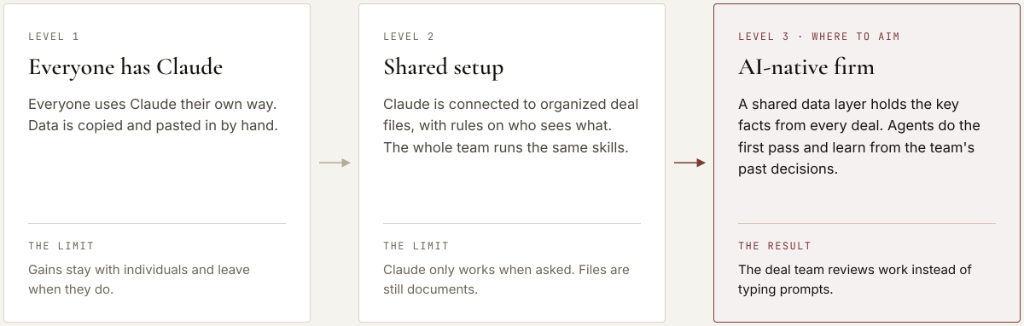
Here is what each level means for the work that takes up the deal team’s week.
| Workflow | Level 1 | Level 2 | Level 3 |
|---|---|---|---|
| Deal screening | One associate summarizes a CIM | Every CIM runs through the firm’s screen | Every CIM is screened when it lands, against the buy box and every past deal |
| Financial review and modeling | Numbers copied into chat | Claude in Excel fills the firm’s LBO template and checks the model | Add-backs and revenue quality get an early read before the QoE starts |
| Portfolio reporting and monitoring | Monthly packs read by hand | Packs reviewed against budget with a shared skill | KPIs and variances flagged automatically, across the whole portfolio |
| LP requests | Someone digs through folders | Claude searches the right folders | Answered from one source of truth across all deals |
Getting to Level 2
At Level 2, Claude is connected to SharePoint or OneDrive, with rules on who can see what. Every deal’s files are organized the same way, and the whole team uses the same skills. The data is still documents in folders, and that’s fine at this stage. None of it needs a developer.
It takes three steps.
Step 1: Organize Your Deal Files
Claude’s answers are only as good as the files it reads. In most firms, final files sit next to duplicates, drafts, and old versions. Claude can’t tell which version to pull, so you may get the wrong answer.
- One structure for every deal. Each deal and portfolio company gets its own folder with the same subfolders and naming.
- Cleaned and Archived. Sorted files go in Cleaned. The full original set stays in Archived, untouched.
- Claude does the sorting. It files each document and renames duplicates and older versions to start with “[Duplicate].”
- People make the final call. Someone on the team approves every move, and nothing is ever deleted.
- Keep the history. Store past CIMs, screens, and IC memos here too. One fund told us it has every CIM it has ever seen and has never used them.
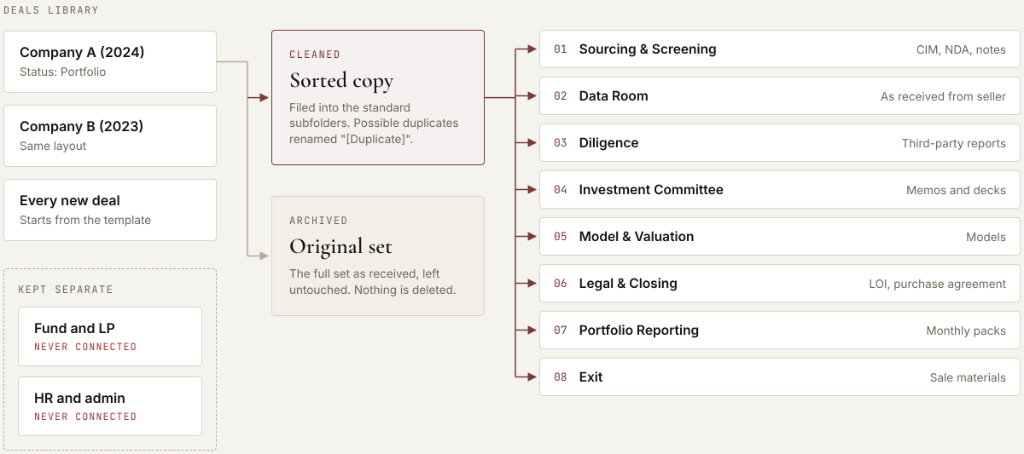
Sorted files go in Cleaned and the originals stay in Archived. Fund, LP, and HR files are kept apart and never connected.
Step 2: Connect Claude Without Exposing LP or HR Files
This is where most firms get stuck. Claude’s built-in Microsoft 365 connector sees everything the signed-in person can see. If a partner can open LP documents, so can their Claude. An admin can turn the connector on or off, or choose who uses it, but can’t limit it to certain folders.
The fix is a secure connector that sits between Claude and SharePoint. The firm sets the rules once, and every request passes through them.
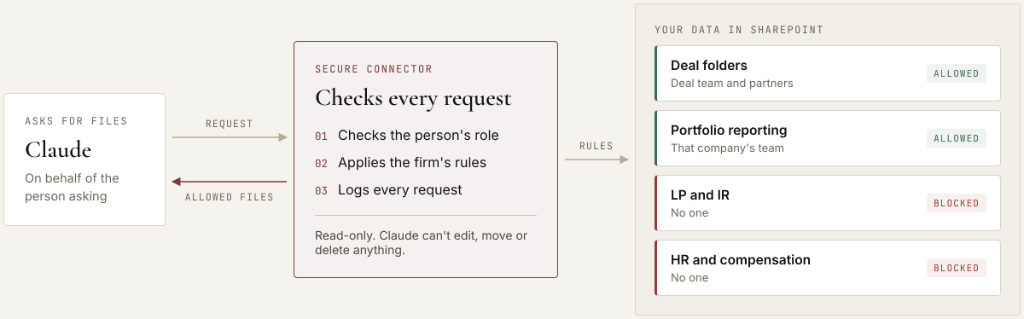
Claude asks, the connector checks the rules, and only allowed files come back. LP, IR, and HR folders are never sent.
- Your files stay where they are. Nothing is moved or copied out of SharePoint.
- Rules by folder and by role. Associates, MDs, and partners can each have a different set of files available to Claude.
- Read-only. Claude can’t edit, move, or delete anything.
- Every request is logged. Compliance can see who asked, what Claude read, and what was blocked.
| Folder | Who Claude can see it for |
|---|---|
| Deal folders (data room, model, IC memos) | That deal team, plus partners |
| Portfolio company reporting | That company’s deal team, plus partners |
| Fund track record | Partners and IR |
| LP, IR, HR, and compensation | No one |
Start the IT side first. Mapping what Claude should see can take a few weeks, while the Claude setup takes an afternoon.
Step 3: Roll Out Shared Skills
A skill is a written procedure Claude follows for a repeatable task, like a CIM screen or an NDA redline. Shared skills are what turn one power user’s setup into the whole team’s process. Here is how to roll them out.
- Get the right plan. Sharing skills and projects needs a Team or Enterprise plan.
- Turn on sharing. An owner enables skills and sharing under Organization settings > Plugins & skills > Policy.
- Pick three workflows. Start with your highest-volume work. For most teams that’s NDA redlines, CIM screens, and one-pagers.
- Write each skill. Write down how your team does the task and what it checks for, such as your NDA positions or buy box. Then ask Claude to “turn this into a skill.” Or start from our prompt pack.
- Test it on a live deal. One deal team uses it first and fixes what’s off.
- Publish it to the firm. Open the skill and click Publish to org. Choose whether it’s available to install, installed by default, or required. Make the core workflows installed by default.
- Give each skill one owner. That person makes the changes once, and everyone gets the update.
- Pair skills with projects. Set up a firm project with the buy box, NDA positions, templates, and two or three model IC memos, shared with everyone as view-only. Then set up one project per live deal, shared with the deal team.
- Show the team how to use them. Ask for the task (“screen this CIM”) and Claude picks the right skill. Or type “/” and the skill name.
- Review after 30 days. Check which skills get used and which manual step should be automated next.
The test of a Level 2 firm: a new associate gets the same workflows on day one. One fund’s NDA skill already returns a redline in about five minutes.
Getting to Level 3
At Level 2, Claude reads your documents when someone asks. At Level 3, a shared data layer holds the key facts from every deal, and agents use it to do the work before anyone asks.
The Shared Data Layer
The data layer turns documents into structured data. The same facts are pulled from every deal and stored in one place: deal terms, financials, KPIs, red flags, and the decisions the team made and why.
- Look across every deal. Ask questions no folder can answer, such as “Which deals did we pass on because of customer concentration, and what happened to them?”
- Learn from past decisions. Every screen, IC decision, and outcome is recorded, so the next screen draws on all of them.
- Faster portfolio reporting. Monthly packs from every portfolio company land in the same format, so KPIs can be compared across the portfolio.
- LP requests from one source of truth. Track record, portfolio metrics, and deal history are in one place instead of scattered across folders.
- Permissions carry through. People and agents see deal data, never HR or LP files.
There is no off-the-shelf version of this. The data layer is usually custom built to match how your firm operates: your buy box, your folders, your reporting format, and your CRM.
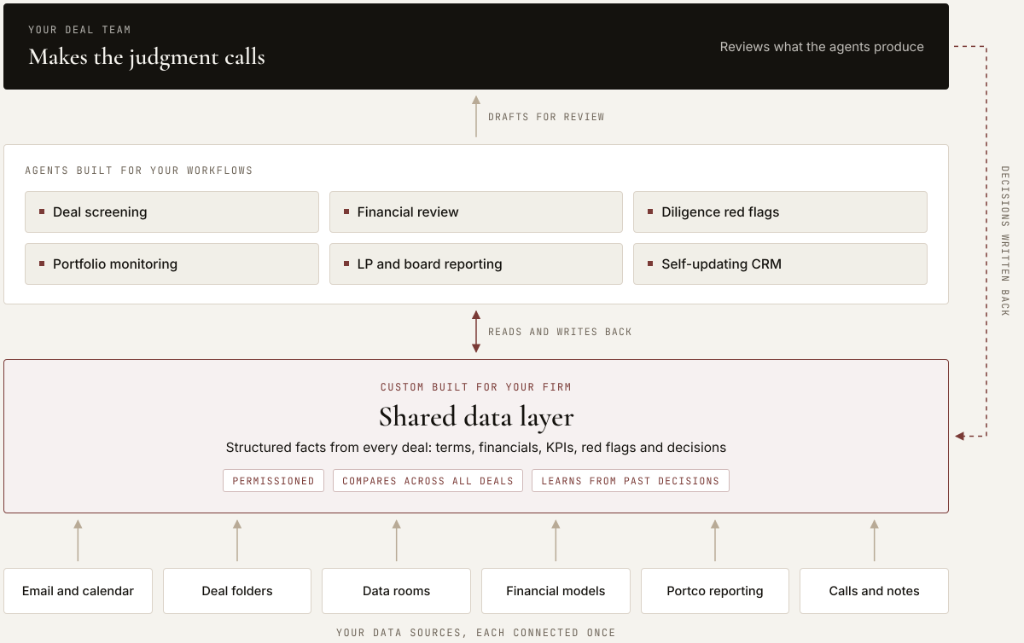
Each source is connected once. Agents read from the data layer and write their results back, and the team’s decisions feed the next deal.
Agents That Do the Work
An agent is AI with a job, the access to do it, and a trigger that starts it. A new email, a new upload, or a date on the calendar sets it off. It does the first pass, and the deal team reviews the result and makes the call.
| Workflow | What starts it | What the agent does | What you decide |
|---|---|---|---|
| Deal screening | A CIM lands in the deals inbox | Files it, checks whether you’ve seen the company, screens it against the buy box and past deals, logs it in the CRM, and sends a brief | Take the call, pass, or ask for more |
| Financial review and modeling | The seller sends financials | Ties the P&L to tax returns and bank data, tests add-backs, and fills the model template | What to price in and what to push on |
| Diligence red flags | New documents hit the data room | Checks each batch against everything received, flags figures that don’t tie, and drafts follow-ups | Which issues matter for IC |
| Portfolio monitoring | A monthly pack arrives | Pulls KPIs, compares them to budget, checks covenants, and flags variances | Which variance needs a call |
| LP and board reporting | Quarter end | Drafts the LP report and board pre-reads in your format | What to send |
Because every decision goes back into the data layer, the system gets better with each deal. The deal team stops typing prompts and starts reviewing work.
Next Steps
We help PE teams set up these systems. That means the Claude setup and shared skills, cleaning up and connecting deal data, and building the custom data layer and agents for Level 3.